Table of Contents
Why Run Windows 95 on a Mac?
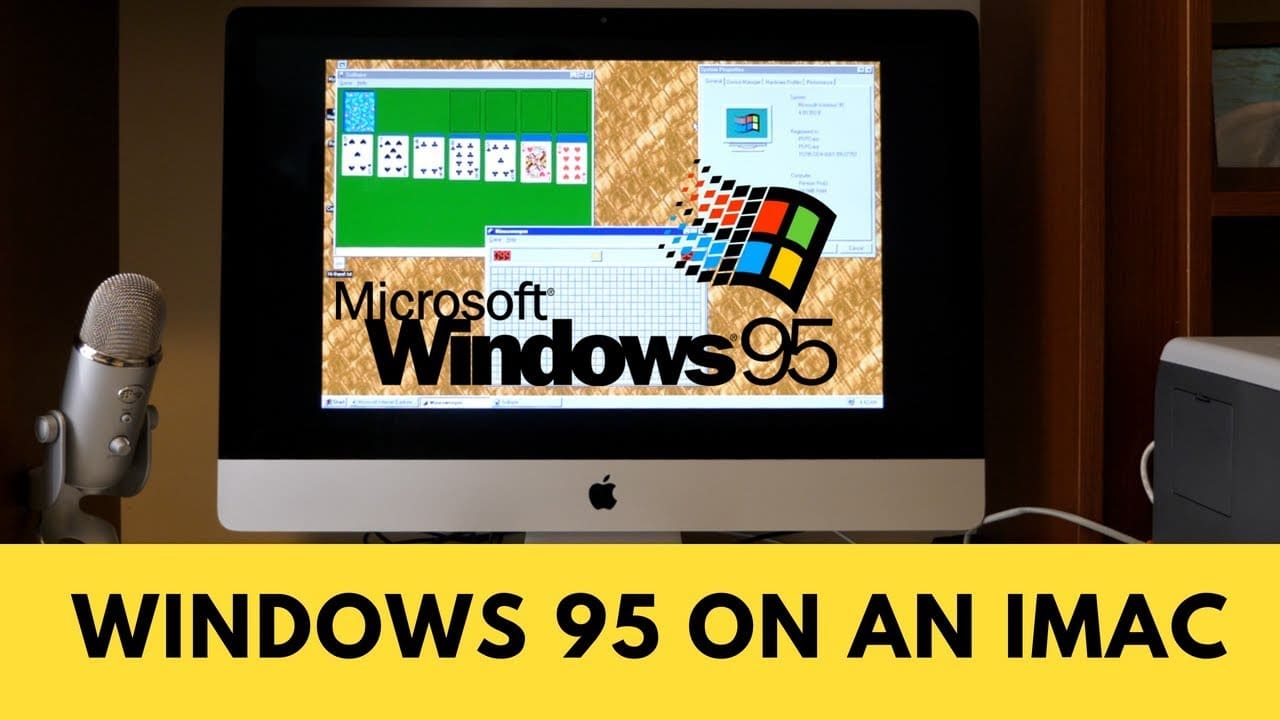
The 1990s were a golden era for personal computing, marked by the rise of iconic operating systems like Windows 95. Released in August 1995, Microsoft’s groundbreaking OS introduced the world to the Start menu, taskbar, and the concept of “Plug and Play” hardware—features that still influence modern operating systems today. For many, Windows 95 evokes nostalgia, conjuring memories of dial-up internet, pixelated Minesweeper marathons, and the unmistakable startup chime. But how can you relive this experience on a modern Mac, a machine designed decades after Windows 95’s heyday?
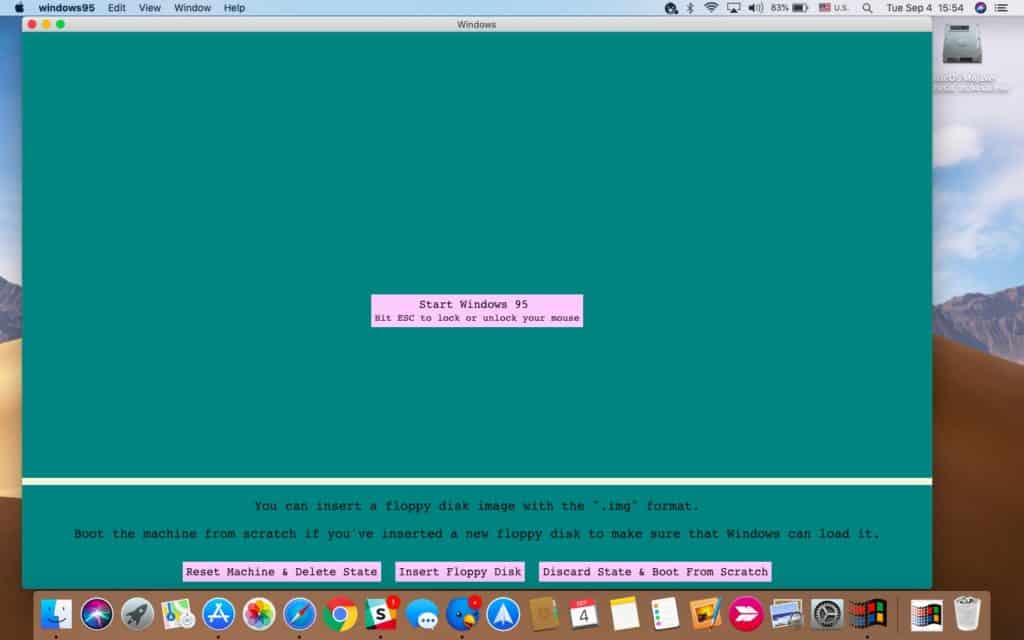
Thanks to innovative open-source projects, it’s now possible to run Windows 95 directly on macOS as a standalone application—no complex virtual machines (VMs) or dual-boot setups are required. This lightweight emulator, developed by Felix Rieseberg, packages the entire Windows 95 environment into a single 450MB program, letting you explore classic apps like Paint, Notepad, and even the retro version of Solitaire. Whether you’re a retro-computing enthusiast, a developer testing legacy software, or simply curious about computing history, this guide will walk you through the process.
Step 1: Downloading the Windows 95 Emulator
Where to Find the Program
The project is hosted on GitHub, a platform for collaborative software development. To get started:
- Open your web browser and navigate to the Windows 95 for macOS GitHub page.
- Scroll down a bit to the “Downloads” section. Download the file based on your architecture. For me, it is ARM-based (windows95-darwin-arm64-4.0.0.zip).

- Click the download link. The compressed file is approximately 402 MB, making it quick to download even on slower connections.
⚠️ Note: GitHub is generally trustworthy, but always exercise caution when downloading third-party software. Ensure your Mac’s antivirus software is up to date.
Step 2: Installing and Extracting the Files
Unzipping the Archive
Once the download completes:
- Locate the ZIP file in your Downloads folder.
- Double-click
windows95-darwin-arm64-4.0.0.zipto extract it. macOS’s built-in Archive Utility will automatically decompress the file into a folder namedWindows 95.app.

📁 File Size: After extraction, the application occupies roughly 450MB of disk space—smaller than most mobile games!
Step 3: Launching Windows 95
Running the Application
- Open the extracted folder and double-click
Windows 95.app. - If macOS displays a security warning (e.g., “Cannot be opened because the developer cannot be verified”):
- Right-click the app and select Open.
- Click Open again in the pop-up dialog to bypass Gatekeeper restrictions.

First-Time Setup
- The emulator boots directly into Windows 95 within seconds. No installation or configuration is required—the OS is pre-activated and ready to use.

Step 4: Navigating the Windows 95 Environment
Keyboard and Mouse Controls
- Use the Escape (Esc) key to toggle mouse and keyboard control between the Windows 95 window and your macOS desktop.
- The emulator supports full keyboard input, including function keys (e.g., F1 for Help).

What’s Included?
Explore pre-installed apps like:
- Windows Explorer: The iconic file manager.
- MS Paint: Create pixel art with the original 90s toolset.
- Minesweeper & Solitaire: Timeless games that defined workplace procrastination.
- Notepad and MS-DOS Prompt: For writing scripts or running command-line utilities.

⚠️ Limitations:
- Audio functionality is missing, so you won’t hear the classic startup sound.
Step 5: Practical Considerations
Is This a Replacement for Virtual Machines?
While this emulator is perfect for nostalgia, it’s not suitable for serious tasks. For robust Windows integration on macOS, consider:
- VirtualBox/VMware: Free tools to run modern Windows versions.
- Parallels Desktop: A premium solution with seamless macOS-Windows integration.
- Boot Camp: Apple’s utility for dual-booting Windows natively on Intel-based Macs.
Performance and Compatibility
- The emulator runs smoothly on most modern Macs, including Apple Silicon (M1/M2) devices via Rosetta 2.
- Save files persist between sessions, but avoid storing critical data—treat it as a sandbox.
Can I use the Internet on Windows 95?
Yes, with the latest update Internet is working on Windows 95. However, most modern websites will not work.
Conclusion: A Portal to Computing History
Running Windows 95 on a Mac isn’t just a technical novelty—it’s a journey through time. This project offers a frictionless way to experience the OS that revolutionized personal computing, whether you’re revisiting childhood memories or educating younger generations about tech history. While tools like VirtualBox serve practical needs, this emulator excels in simplicity, letting you dive into retro gaming or explore the interface that once threatened Apple’s dominance.
So fire up Minesweeper, open the CRT-themed display settings, and enjoy the charm of an era when computing was delightfully uncomplicated. If you encounter issues, consult the GitHub repository’s FAQ or share your experience in the comments below. Happy time traveling!